
Google Search Console: A Complete Guide for SEO in 2026
Vietnamese
Quick answer: Google Search Console (GSC) will remain a cornerstone for SEO in 2026, offering crucial insights into website performance and indexability. It will continue to be the primary interface for webmasters to monitor crawl errors, submit sitemaps, and understand how Google sees their site. While new features might emerge, such as enhanced AI-driven recommendations or deeper integration with other Google tools, its core function as a diagnostic and reporting hub will be indispensable for optimizing organic visibility.
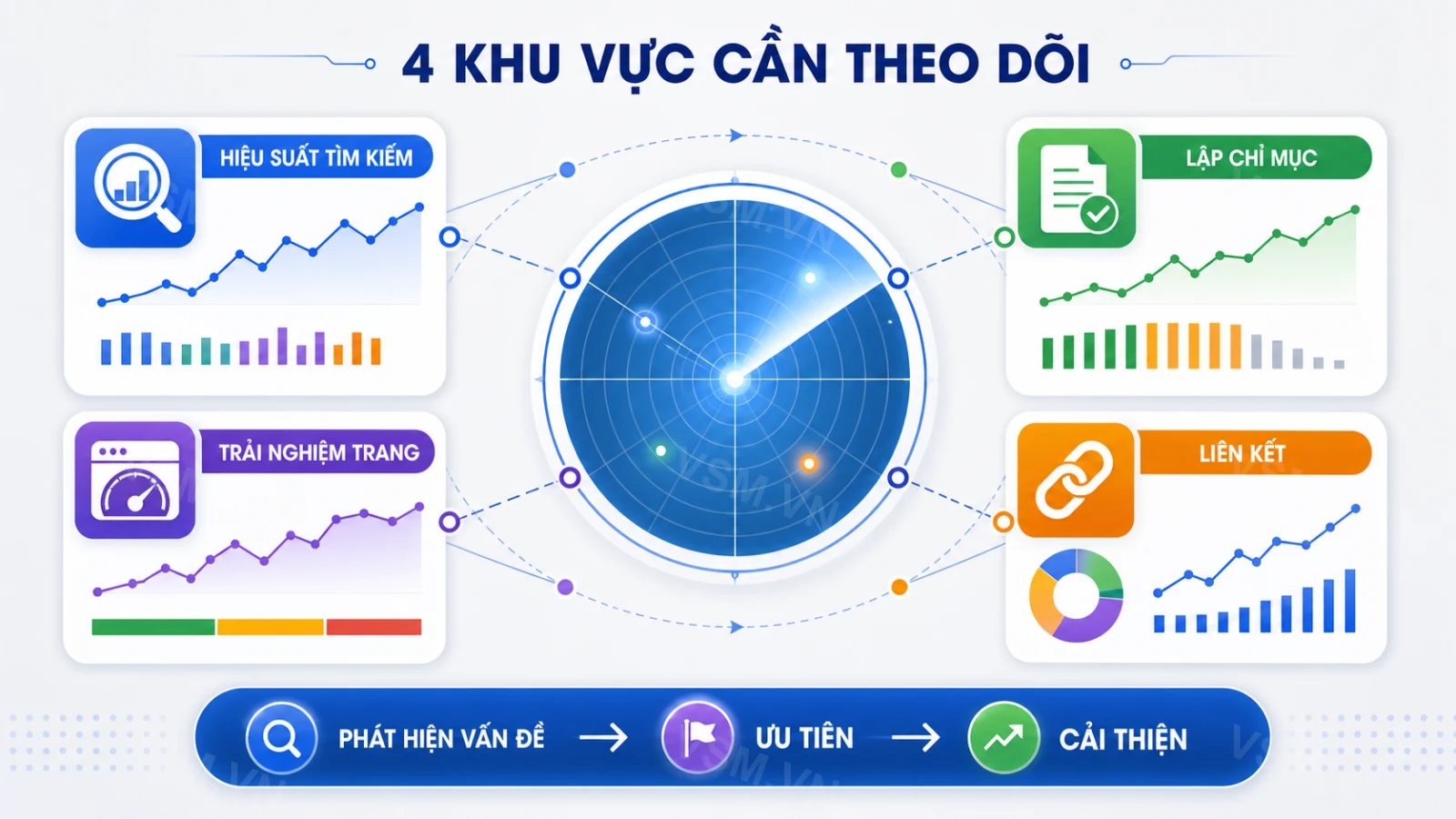
If you could only pick one free tool to rely on for SEO work, most professionals would choose Google Search Console. It's the only channel where Google lets your website "talk directly" to the search engine — showing which pages have been indexed, which keywords are actually driving traffic, and which technical issues are holding your rankings back.
Heading into 2026, as Google keeps rolling out algorithm updates and tightening its page-experience standards, knowing how to read and act on Search Console data is no longer a "nice-to-have" skill — it's a baseline requirement for anyone doing SEO. This article walks through everything from the basics to how to use each feature in practice, so you can get the most out of the tool for your website's optimization strategy.
What Is Google Search Console and Why It Matters for SEO in 2026
Google Search Console (GSC), formerly known as Google Webmaster Tools, is a free service from Google that lets website owners monitor, maintain, and troubleshoot their site's presence in search results. Unlike Google Analytics, which focuses on user behavior after visitors land on your site, Search Console shows you exactly how Googlebot sees your pages: whether they've been crawled, whether they've been indexed, where they rank, and whether any technical errors are getting in the way.
GSC's role becomes even more critical in the context of 2026 SEO, as Google evaluates websites based on a growing mix of combined signals — page experience, load speed, mobile-friendliness, and content relevance. Without direct data from Google, every SEO adjustment is essentially guesswork. That's exactly why providers of professional SEO services always treat Search Console as a foundational tool, using it alongside keyword and backlink analysis software to build accurate optimization strategies for each website.
The Shift Towards User-Centric SEO
In 2026, Google's algorithms are more sophisticated than ever, prioritizing websites that offer exceptional user experiences. This means content quality, technical performance, and mobile usability are not just factors but critical pillars of ranking success. GSC provides direct insights into these areas:
- Core Web Vitals: Directly measures user experience metrics like loading speed, interactivity, and visual stability.
- Mobile Usability: Identifies specific pages with mobile-friendliness issues, crucial in a mobile-first indexing world.
- Indexing Coverage: Ensures that your valuable content is even visible to Google, preventing wasted effort on unindexed pages.
By providing this direct feedback, GSC empowers SEOs to move beyond theoretical best practices and implement data-driven improvements that align precisely with Google's evolving expectations.
How to Set Up and Verify Website Ownership on Google Search Console
To get started, go to search.google.com/search-console, sign in with a Google account, and add a property for the website you want to manage. Google offers two property types: "Domain," which covers the entire domain including all subdomains and both http/https protocols, and "URL prefix," which applies only to the exact address you enter. For most businesses, choosing the Domain property gives you the fullest picture of your data and prevents metrics from being fragmented across different versions of your site.
Common Verification Methods
- DNS record: add a TXT record provided by Google to your domain registrar's DNS settings. This is the recommended method because it's the only one available for the Domain property type and remains stable long-term.
- HTML file upload: upload the verification file Google generates to your website's root directory — ideal if you have FTP or hosting access.
- HTML tag: paste a meta tag into the
<head>section of your homepage, convenient when using popular CMS platforms. - Google Analytics or Google Tag Manager: if your site already has tracking code installed, you can verify instantly without touching the source code.
Once verification succeeds, data usually takes around 24-48 hours to start appearing, and some reports — like Performance — need a few days to accumulate enough data to be statistically meaningful.
Step-by-Step: DNS Verification (Recommended)
For the Domain property, DNS verification is the most robust and recommended method. Here's a simplified process:
- Log in to GSC: Go to search.google.com/search-console and click "Add Property."
- Select "Domain": Enter your root domain (e.g.,
yourwebsite.com) and click "Continue." - Copy TXT Record: Google will provide a unique TXT record string. Copy this string to your clipboard.
- Access Domain Registrar: Log in to your domain registrar's control panel (e.g., GoDaddy, Namecheap, Cloudflare).
- Navigate to DNS Settings: Find the section for DNS management or "Manage DNS."
- Add a New Record: Create a new TXT record.
- Configure TXT Record:
- Host/Name: Often leave this blank or enter
@(check your registrar's specific instructions). - Value/Text: Paste the TXT record string you copied from GSC.
- TTL (Time to Live): You can usually leave this at the default setting or choose a short duration like 3600 seconds (1 hour).
- Host/Name: Often leave this blank or enter
- Save Changes: Save the new DNS record.
- Return to GSC: Go back to Google Search Console and click "Verify."
DNS changes can take anywhere from a few minutes to 48 hours to propagate across the internet. If verification fails immediately, wait a few hours and try again. Once verified, you'll have a comprehensive view of your entire domain.
Core Features You Need to Know in Google Search Console
Performance Report
This is the most-used report, showing impressions, clicks, click-through rate (CTR), and average position for your website by keyword, page, country, or device. By studying this report, you can spot keywords with high impressions but low CTR — a sign that your title tag or meta description needs a more compelling rewrite — or keywords sitting on page 2 of search results that just need a bit more optimization to break into the top 10.
Actionable Insights from the Performance Report:
- Identify "Low-Hanging Fruit" Keywords: Filter by position 11-20. These are keywords where your page is already ranking on the second page of Google. With a little extra optimization (e.g., improving content depth, adding internal links, updating meta descriptions), these pages can often be pushed to the first page, yielding significant traffic gains.
- Optimize for CTR: Look for keywords with high impressions but low CTR (e.g., <2%). This indicates that while your page is appearing in search results, users aren't clicking on it. Focus on refining your title tags and meta descriptions to be more compelling, accurate, and keyword-rich, encouraging more clicks.
- Uncover New Content Opportunities: Examine queries with high impressions but no relevant content on your site. This can reveal topics your audience is searching for that you haven't yet addressed, providing ideas for new blog posts or service pages.
- Monitor Seasonal Trends: Observe how certain keywords or pages perform over time. Seasonal businesses can use this to anticipate traffic fluctuations and plan content or promotions accordingly.
URL Inspection and Indexing Status
The URL Inspection tool lets you enter a specific address to check whether Google has crawled and indexed that page, when it was last crawled, and if there's an error, what caused it. The "Indexing > Pages" report gives you a full overview of your website, clearly categorizing which pages are indexed, which are excluded, and the specific reasons why — such as being blocked by robots.txt, tagged noindex, or flagged as duplicate content via a canonical tag.
Deep Dive into Indexing Issues:
- "Discovered - currently not indexed": This means Google knows about the URL but hasn't crawled or indexed it yet. This is common for new sites or pages, but if it persists, it could indicate crawl budget issues or a perception of low quality. Ensure the page is linked internally, has unique content, and isn't blocked.
- "Crawled - currently not indexed": Google has crawled the page but decided not to index it. This often points to quality issues (thin content, duplicate content), technical issues (noindex tag present), or Google simply deeming the page not valuable enough for its index. Check the page content, canonical tags, and ensure no accidental noindex directives are present.
- "Blocked by robots.txt": A clear indicator that your robots.txt file is preventing Googlebot from accessing the page. Review your robots.txt to ensure you're not accidentally blocking important content.
- "Duplicate, submitted URL not selected as canonical": Google has found multiple versions of a page and chosen a different one as the authoritative source. While often harmless, ensure Google's chosen canonical matches your intent to avoid diluted ranking signals.
Regularly reviewing the Indexing reports ensures that your valuable content is actually discoverable by search engines, a fundamental step in any SEO strategy.
Sitemaps, Core Web Vitals, and Page Experience
The Sitemaps section lets you submit a sitemap.xml file so Google can crawl your site more efficiently and thoroughly — especially useful for e-commerce sites or blogs with hundreds of posts. Beyond that, the Core Web Vitals report evaluates loading speed (LCP), interaction responsiveness (INP), and visual stability (CLS) — three metrics that directly affect user experience and that Google has confirmed as official ranking signals.
Optimizing for Page Experience:
- Sitemaps: Submitting an XML sitemap helps Google discover all your important pages, especially for large sites or those with complex navigation. It's not a ranking factor directly, but it aids crawl efficiency. Regularly check the sitemap report for errors like broken URLs or incorrect entries.
- Core Web Vitals (CWV):
- Largest Contentful Paint (LCP): Measures perceived load speed. Aim for an LCP of 2.5 seconds or less. Optimize images, use a CDN, improve server response time, and minimize render-blocking resources.
- Interaction to Next Paint (INP): Measures responsiveness to user interactions. Aim for an INP of 200 milliseconds or less. Optimize JavaScript, reduce third-party script impact, and ensure smooth animations. (Note: INP replaced FID in March 2024).
- Cumulative Layout Shift (CLS): Measures visual stability. Aim for a CLS of 0.1 or less. Specify image and video dimensions, ensure ads and embeds have reserved space, and avoid injecting content above existing content.
- Mobile Usability: A dedicated report in GSC highlights pages with mobile-specific issues like small font sizes, viewport not set, or clickable elements too close together. Fixing these is paramount for mobile-first indexing.
- HTTPS Usage: GSC also confirms if your site is served over HTTPS, a small but confirmed ranking signal and a security best practice.
Improving these page experience metrics not only helps with rankings but also provides a better experience for your users, leading to lower bounce rates and higher engagement.
Step-by-Step Guide to Using Google Search Console for SEO Optimization
An effective GSC workflow typically follows these steps. Start by spending 10-15 minutes each week reviewing the Performance report, filtering by individual page to spot any unusual traffic drops — often an early sign of a ranking slip or an algorithmic penalty. Next, review the Indexing section to immediately address errors like "Discovered - currently not indexed" or "Crawled - currently not indexed," which are common issues that keep fresh content from ever showing up in search results even though you've published it in full.
If you're just getting started and want to see the bigger picture of how all these pieces work together in a long-term strategy, the article What Is Comprehensive SEO? A Complete Guide lays out exactly where Search Console fits into the overall optimization process, from keyword research to on-page optimization to link building. It's also worth checking the "Links" report to see where your website's backlinks are coming from and which internal pages get linked to most — data that's extremely useful when planning a smarter internal linking structure.
Weekly GSC Optimization Workflow:
- Performance Report Deep Dive (15-20 minutes):
- Overall Trend Analysis: Check total clicks and impressions for any significant dips or spikes. Correlate these with recent site changes or Google updates.
- Page-Level Analysis: Filter by "Pages" and sort by "Clicks" (descending). Identify top-performing pages and look for those with declining clicks. Use the "Queries" filter for these pages to see if specific keywords are dropping.
- Keyword Opportunity Spotting: Filter by "Queries" and set position to 11-20. Brainstorm ways to optimize content for these "near-miss" keywords.
- CTR Optimization: Filter by "Queries" with high impressions but low CTR. Rewrite title tags and meta descriptions for these, then monitor if CTR improves.
- Indexing and Coverage Review (10-15 minutes):
- "Pages" Report: Check for new errors or significant increases in "Excluded" pages. Prioritize fixing "Server error (5xx)", "Redirect error", "Submitted URL not found (404)", and "Blocked by robots.txt".
- URL Inspection Tool: For any critical new content or pages you've just updated, use this tool to "Request Indexing" to speed up Google's discovery. Also, use it to debug specific indexing issues identified in the "Pages" report.
- Page Experience & Core Web Vitals (5-10 minutes):
- Core Web Vitals Report: Monitor "Poor URLs" and "Needs improvement URLs" for both mobile and desktop. If new issues arise, escalate to your development team.
- Mobile Usability Report: Address any newly identified mobile-friendliness issues.
- Sitemaps & Removals (2-5 minutes):
- Sitemaps Report: Ensure your sitemap is submitted and processed without errors.
- Removals Tool: If you've intentionally removed content or need to temporarily hide a URL from search, use this tool. Be cautious and understand its implications.
- Links Report (Monthly Review, 15-20 minutes):
- External Links: Identify new backlinks and monitor the quality of referring sites. Spot any unusual or spammy links that might require disavowing.
- Internal Links: See which pages receive the most internal links. This helps understand your site's information architecture and identify pages that might need more internal linking juice.
By making this a routine, you transform GSC from a data repository into a proactive SEO optimization engine.
Common Mistakes and Safety Tips When Using Google Search Console
Many newcomers to GSC make mistakes that lead to misreading data or missing optimization opportunities:
- Confusing GSC metrics with Google Analytics data: the two tools measure things on different principles, so clicks/traffic figures can differ — understand what each metric actually represents rather than comparing them directly.
- Ignoring the Security & Manual Actions report: if your site has ever been hacked or hit with link spam, Google will send a warning under Security Issues — address it immediately to avoid being removed from search results.
- Requesting re-indexing too often: the "Request Indexing" feature has a daily limit; use it only for important pages you've just updated, not in bulk across many URLs.
- Not setting clear access permissions: when outsourcing SEO work, grant appropriate access levels instead of sharing your main Google account password, to keep your business data secure.
Advanced Safety and Best Practices:
- Regularly check "Settings > Ownership verification": Ensure no unauthorized users have gained ownership of your property. If you work with agencies, ensure they only have delegated owner or full user access, not actual ownership.
- Monitor "Settings > Crawl Stats": This report provides data on Googlebot's activity on your site. A sudden drop in crawl requests could indicate a technical issue preventing Googlebot from accessing your site, while a spike might suggest a misconfiguration or a large number of new pages.
- Understand the "Removals" tool carefully: This tool is powerful for temporarily hiding URLs from Google Search results. However, it's not a permanent solution for content removal. For permanent removal, you should use a 404/410 status code or a noindex tag, and only then use the removals tool to speed up the process. Misuse can lead to important pages disappearing from search.
- Utilize "Associations": Link your GSC property with other Google services like Google Analytics and YouTube. This can unlock more integrated data views and streamline reporting across your digital ecosystem. For example, associating with Analytics allows you to see GSC data directly within GA reports.
- Set up Email Notifications: GSC automatically sends email alerts for critical issues like manual actions, security breaches, or significant indexing problems. Ensure these notifications are going to an email address that is regularly monitored by your SEO team or website administrator.
By adhering to these safety tips and best practices, you can leverage GSC's power without inadvertently causing harm to your site's search presence or security.
Google Search Console vs. Paid SEO Tools
Compared to paid platforms like Ahrefs or SEMrush, Google Search Console's biggest advantage is that its data comes straight from Google itself, with no estimation involved — meaning impressions, keyword positions, and indexing errors are entirely accurate and reliable. That said, GSC only shows the most recent 16 months of data and doesn't let you research competitors' keywords or backlinks — a gap that paid tools fill. An effective SEO strategy usually combines both: using Search Console as your "ground truth" data source to measure real results, paired with a paid tool for research and expansion.
The Complementary Power of Free and Paid Tools
While GSC provides the authoritative "what's happening on my site with Google" perspective, paid tools expand your capabilities significantly:
- Competitive Analysis: Paid tools allow you to analyze competitors' keyword rankings, traffic estimates, and backlink profiles. GSC only shows your own data.
- Extensive Keyword Research: Paid tools offer massive keyword databases, filtering options, and difficulty scores that go far beyond GSC's "Queries" report, helping you discover new opportunities.
- Backlink Analysis: While GSC shows your backlinks, paid tools provide a much deeper dive into anchor text, referring domains' authority, new/lost links, and disavow management features.
- Historical Data: Paid tools often store years of historical data, allowing for long-term trend analysis that GSC's 16-month limit cannot provide.
- Advanced Technical SEO Audits: Comprehensive site audit features in paid tools can identify a broader range of technical issues (e.g., broken internal links, duplicate content issues across the entire site, crawl depth analysis) that GSC might only hint at through indexing errors.
Think of GSC as your site's health monitor and direct communication channel with Google, and paid tools as your strategic intelligence platform for market research and competitive advantage. Using them in tandem creates a robust and holistic SEO strategy.
Conclusion: Mastering GSC for 2026 and Beyond
Google Search Console is more than just a reporting tool; it's a direct line to Google's perspective on your website. In the ever-evolving landscape of SEO, especially with Google's continued emphasis on user experience and technical excellence, understanding and actively using GSC is non-negotiable. From identifying critical indexing errors to pinpointing content optimization opportunities and monitoring your site's Core Web Vitals, GSC empowers you with the data needed to make informed decisions that directly impact your search rankings and organic traffic.
By integrating GSC into your weekly SEO routine, you can proactively address issues, capitalize on emerging opportunities, and ensure your website remains healthy and visible in Google's search results. For any business serious about its online presence, mastering Google Search Console is not just a recommendation—it's a fundamental requirement for success in 2026 and the years to come.
Frequently Asked Questions
Is Google Search Console free? Yes, Search Console is completely free and doesn't limit how many websites you can add to your account, as long as you can verify ownership.
How long does it take for data to appear in Search Console after verifying a website? Data typically starts being recorded within 24-48 hours, but the Performance report needs anywhere from a few days to a few weeks to accurately reflect real trends.
How is Google Search Console different from Google Analytics? Search Console focuses on how Google crawls, indexes, and displays your website in search results, while Google Analytics measures user behavior after visitors arrive on your site, such as time on page or conversion rate.
Do I need to set up Google Search Console separately for each subdomain? If you choose the "Domain Property" type, data from all subdomains and both http/https protocols is automatically combined, so there's no need to register each version separately.
Can Google Search Console help me find new keywords? While GSC's Performance report shows you keywords your site is already ranking for, it's not primarily a keyword research tool for discovering new terms. For new keyword ideas, you'd typically use a dedicated keyword research tool like Google Keyword Planner or a paid SEO platform.
What should I do if my pages aren't getting indexed? First, use the URL Inspection tool to check the specific page for errors (e.g., "noindex" tag, blocked by robots.txt). Then, review the "Indexing > Pages" report for broader issues. Ensure your content is unique, high-quality, and well-linked internally. If the issue persists, consider submitting a sitemap and requesting re-indexing for critical pages.